Access Control Docs
Install App
One Access Control app for all clients. Install from private Google Play, then pick the client for your event.
Single app for every event
Package: com.hindavi.accesscontrolapp. After install, choose ADNEC, DMG, Xporience, or Terrapinn. Scans go to that client's dashboard. You can switch clients later while logged out.
Before you install (temporary — migration only)
Previously each client had its own app. Those separate installs are no longer used. This step is only needed on devices that still have an old client-specific app. Skip it on a clean device.
- On the device, open Settings → Apps (or long-press the old app icon).
- Uninstall any older Access Control / DMG Access Control builds. Known old package:
com.hindavi.dmgaccesscontrolapp. Leave other apps alone. - Install the new single app below (
com.hindavi.accesscontrolapp).
Temporary guidance
Once every floor device is on the single app, you will not need this uninstall step for future events.
Installation Steps
Use one of the two options below. For most users, the QR flow is the fastest option. The listing is private — your Google account must be on the tester list.
Choose an install method
Option 1: Install with QR
Scan the QR code to install the app from Google Play.
Option 2: Search in Play Store
If you do not have the QR code, find the app manually in Google Play.
Option 1: Install with QR
Scan the QR code from your phone. It opens the installation page for Access Control.
Step 1: Scan QR
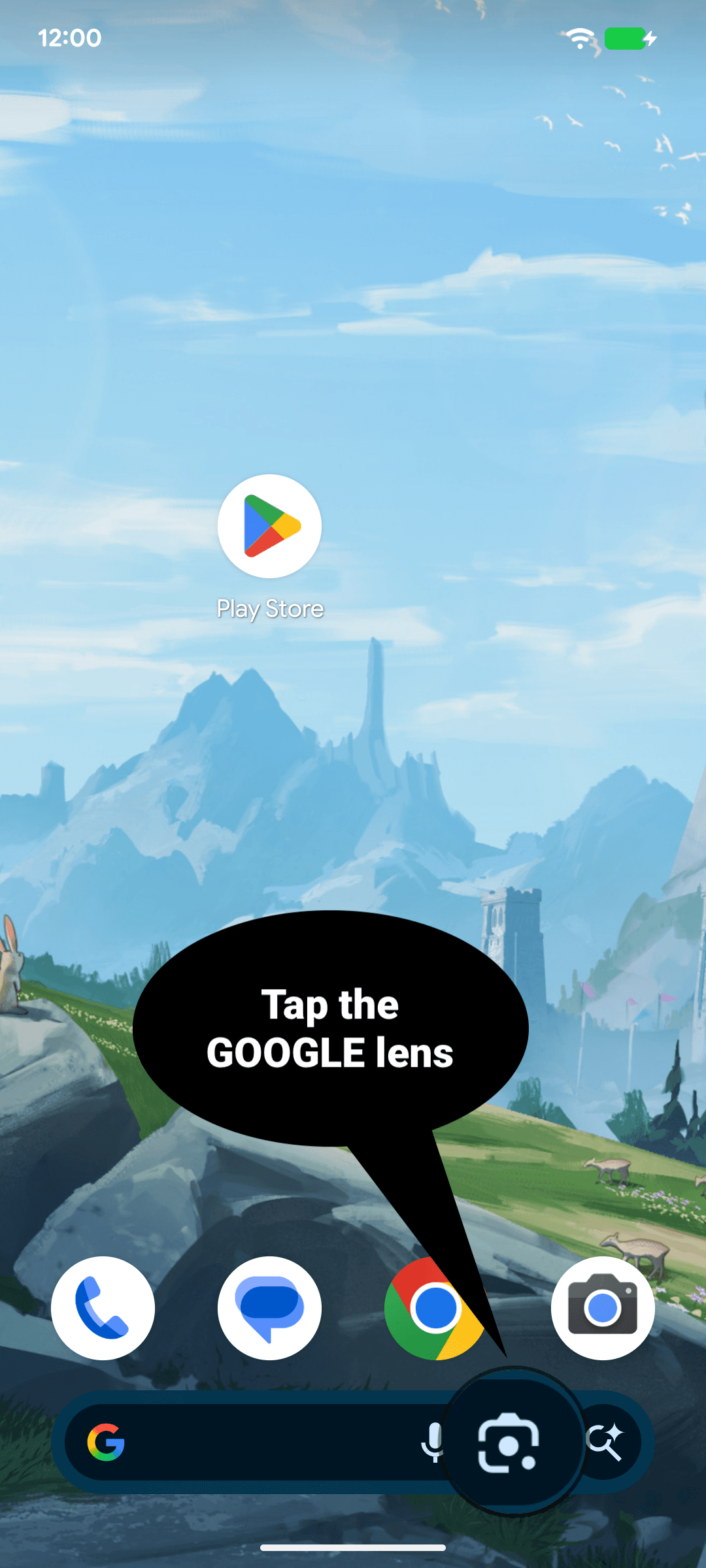
Scan the QR code. It should open the Google Play installation page for this app.

You can also use Google Lens to scan the QR directly from your home screen.
Step 2: Join as tester
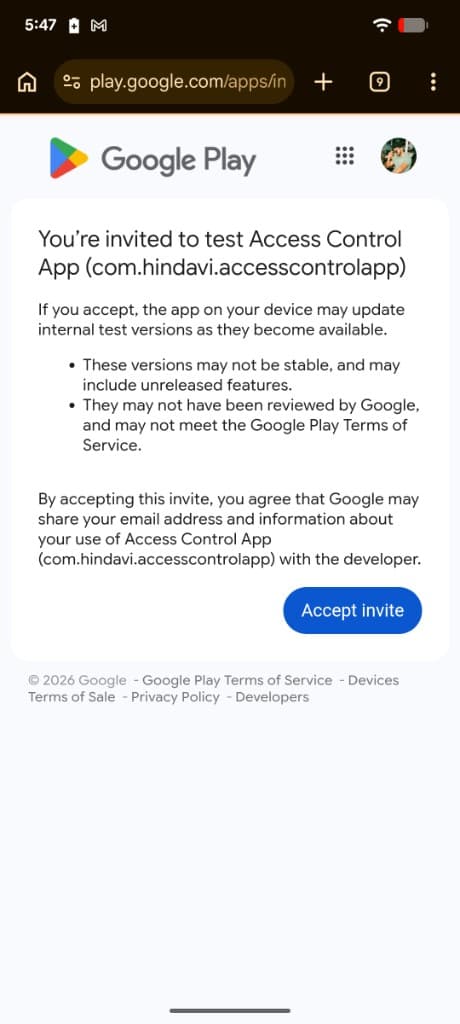
You must be added as a tester. First accept the invite, then confirm you are on the tester list.
2a. Accept invite
Tap Accept invite on the Google Play tester page.
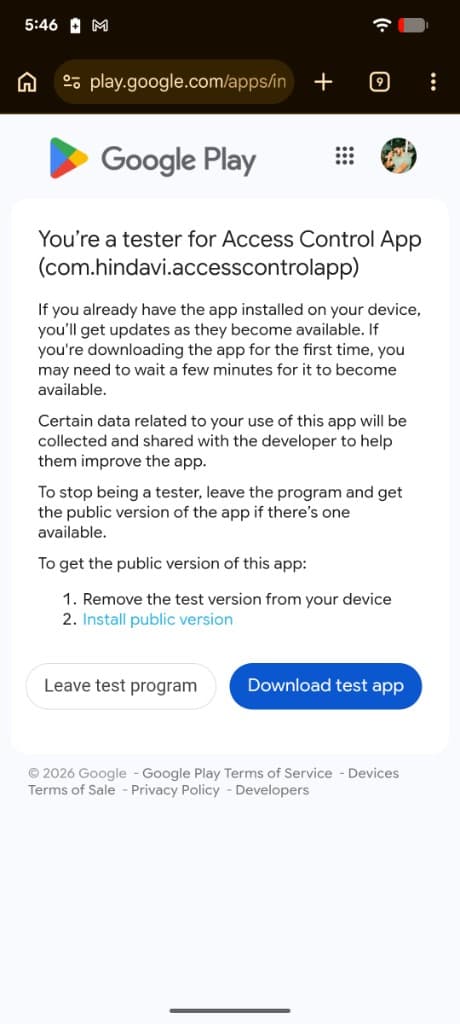
2b. You’re a tester
After accepting, you should see You’re a tester for com.hindavi.accesscontrolapp. Tap Download test app (or continue to Google Play).
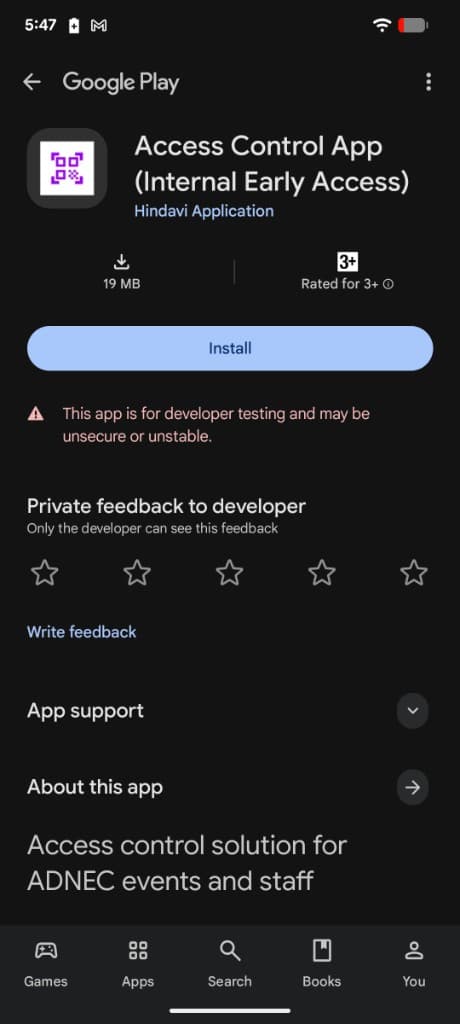
Step 3: Install from Google Play
Open the Access Control App listing and tap Install. The listing may show as Internal Early Access.
Option 2: Search in Play Store
If you do not have the QR code, install the app manually from Google Play on your Android device.
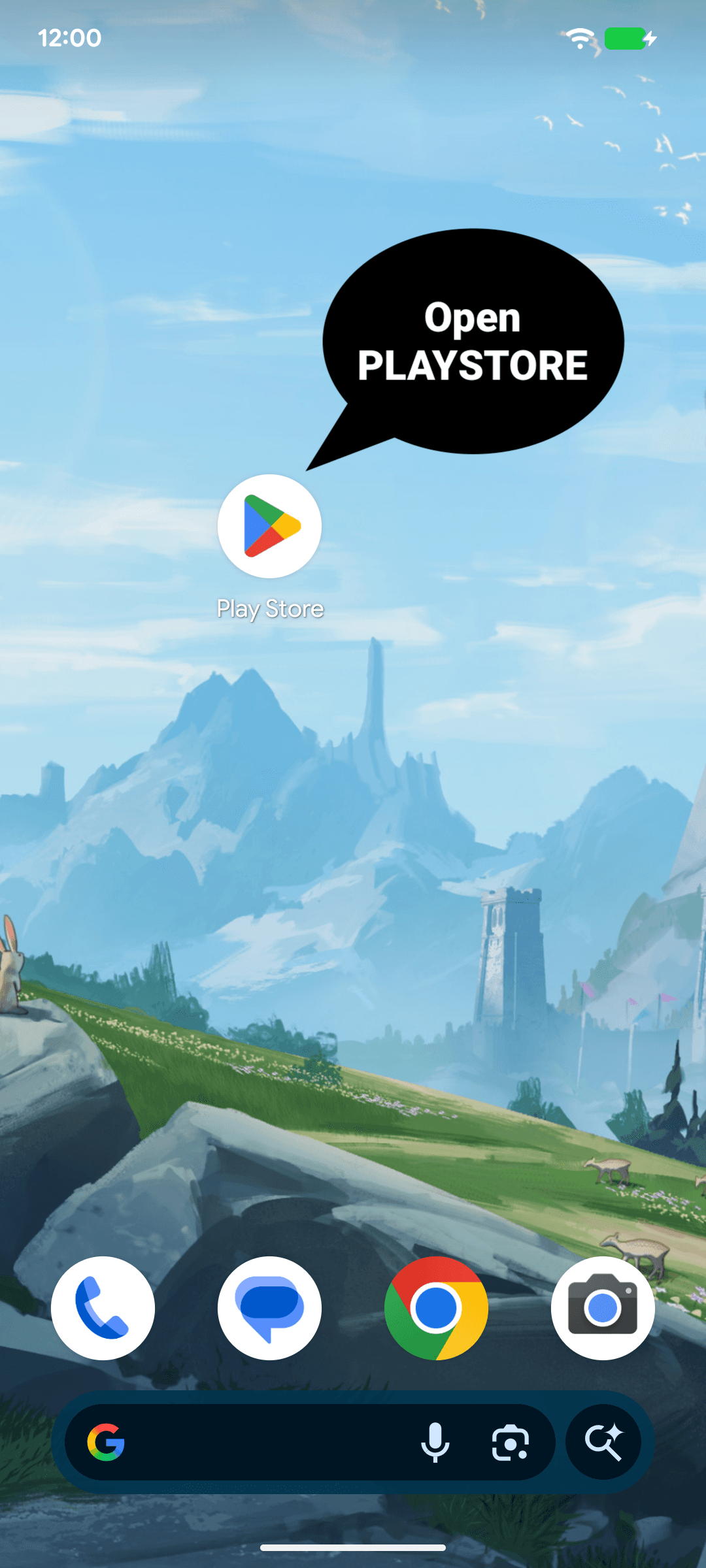
Step 1: Open Play Store on Android
Open the Play Store app from your home screen or app drawer.
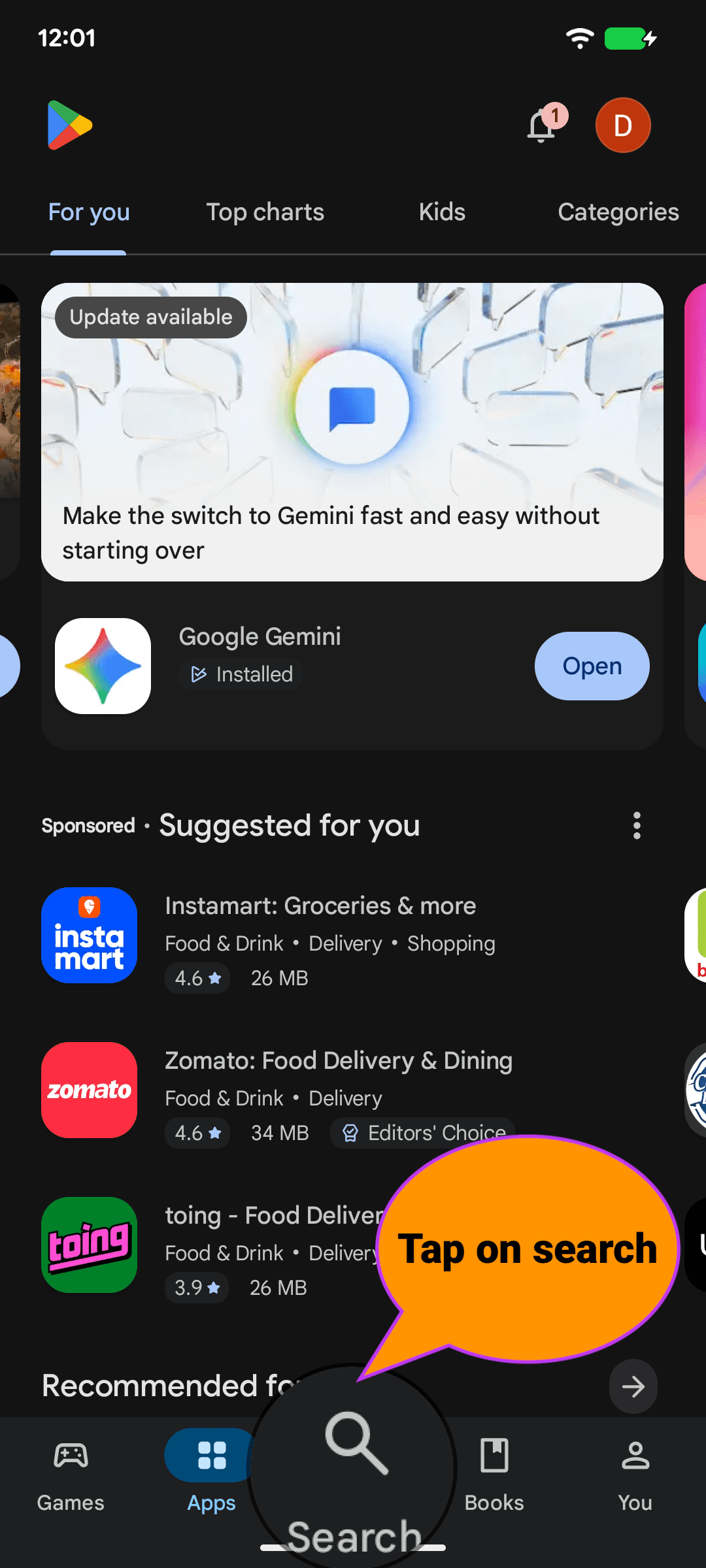
Step 2: Open search in Play Store
Go to the search field at the top of Play Store.
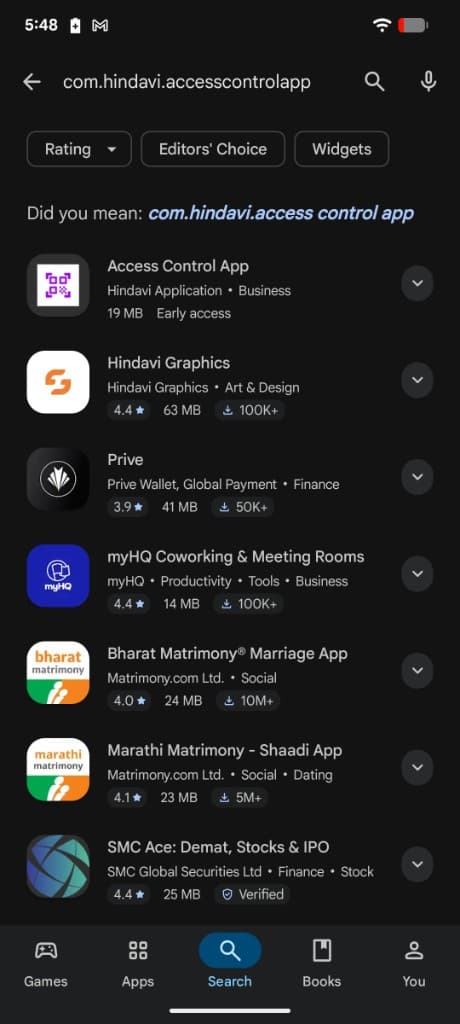
Step 3: Search the package name
Search for com.hindavi.accesscontrolapp. Open Access Control App by Hindavi Application (Early access), then tap Install.
Direct link (opens in browser or Play Store when signed in on device): https://play.google.com/store/apps/details?id=com.hindavi.accesscontrolapp
After installation
When you open the app for the first time:
- Allow camera permission when asked (needed for scanning).
- Select Client — ADNEC, DMG, Xporience, or Terrapinn. This chooses which registration dashboard receives scans. The choice is remembered on the device.
- Log in using the credentials shared with you.
- Select your space, then start scanning.
- Open the full setup & user guide for device settings, sync, and troubleshooting.
Switch client (when required)
- Sync any unsynced scans for the current client (or wipe them if told to).
- Log out of the app.
- On the login screen, tap the client name / pencil (Change).
- Pick the new client, then log in with that client's credentials.
You cannot switch while logged in. If the device has unsynced scans for the client you are leaving, the app will ask you to cancel (log in and sync) or wipe those unsynced rows before switching.
Important
If tester access is not active yet, wait a few minutes and refresh the tester page, or confirm with your organizer that your Google account is on the tester list.
Note
Login credentials are shared separately before the event. Use the credentials for the selected client.